 Agencies and studios
 Photographers
 Podcasters
 Video and social creators
 Marketers and content teams
What does Volume & normalize do?
Volume & normalize makes audio louder or quieter on your own computer. It can bring a batch of recordings to the same loudness, lift the loudest moment to a set level, or apply a fixed change. In the app the tool is called Volume / Normalize.
Each file you add gives back one new file, with "-vol" added to its name. Normalize and Peak listen to each file first and then set the right level, so you do not have to guess.
Step 1: Add your audio files
Click Tools in the sidebar, open the Audio tab and click Volume / Normalize in the Edit section. You can also type "make audio louder" in the search box at the top.
Drop your files on the queue, or click it to pick them. Volume / Normalize takes audio files such as MP3, WAV, FLAC, AAC, M4A, OGG, Opus, AIFF and WMA. Each row shows the file’s length and size. Video files are listed under Not applicable and are skipped. Use Add more to add files later.
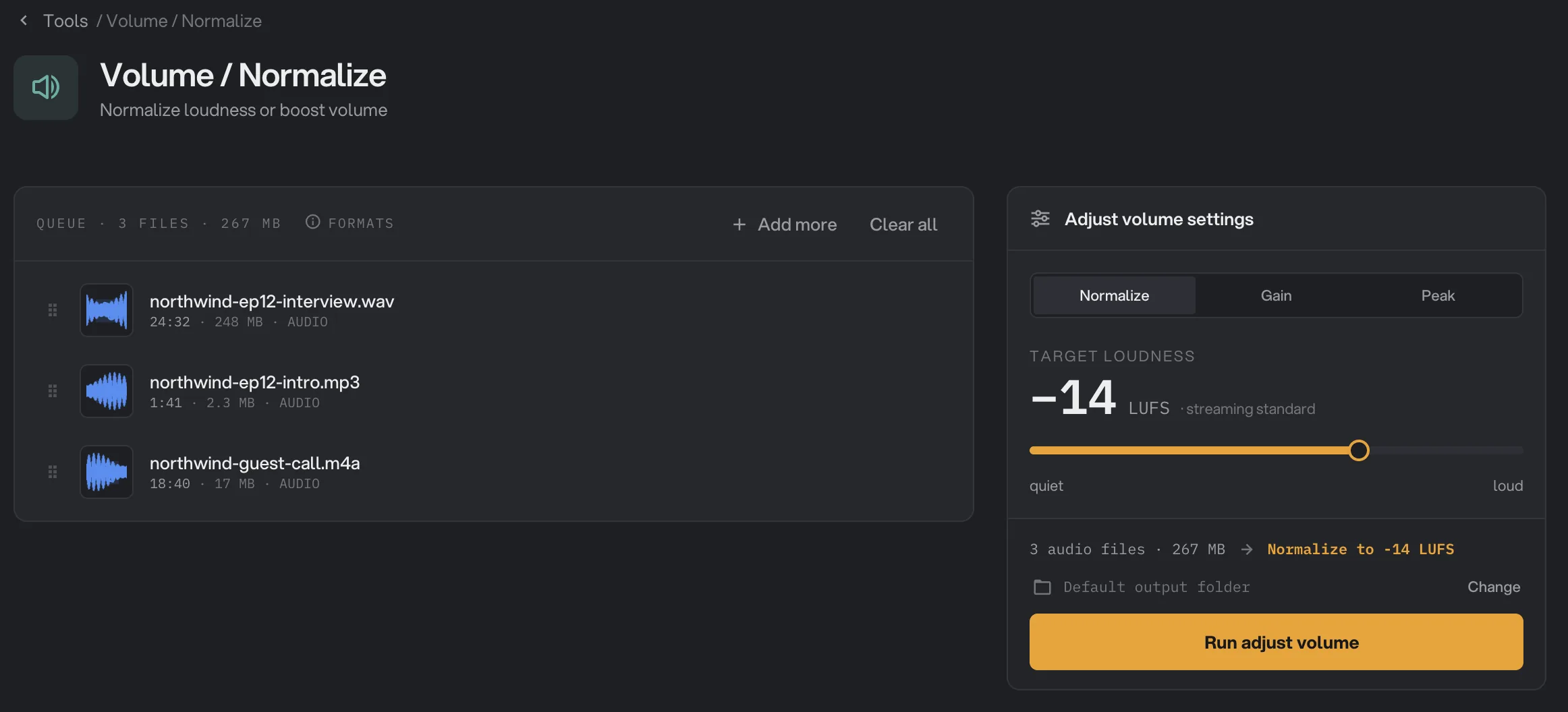
- Add more
- Normalize
- Target loudness
- Loudness slider
- Run adjust volume
Step 2: Normalize to a loudness target
Normalize is selected when the tool opens. It measures how loud each whole file sounds, then raises or lowers it to the Target loudness. Every file in the run ends up at about the same loudness, so listeners do not have to reach for the volume between episodes or clips.
The target is in LUFS, a unit for how loud a whole recording sounds. The numbers are negative: closer to zero is louder. Drag the slider from -24 (quiet) to -9 (loud). The default, -14, is marked on the slider, and the readout calls it the streaming standard. Leave it there unless the person or place you deliver to asks for another number.
Normalize turns each whole file up or down by one exact amount, so every file lands on the target and its quiet and loud parts keep the balance they had. Loud or uneven recordings, such as a live set or a talk with applause, are not squashed flat. If that change would push the loudest moments too high, Hangar holds just those moments a little below the maximum, so they do not distort: 1 dB below it, or 2 dB below it with the quietest target, -24 LUFS.
Step 3: Or use Peak or Gain
Pick another mode at the top of the panel when you need a different kind of change:
- Peak finds the single loudest moment in each file and raises or lowers the whole file so that moment sits at the Peak ceiling, from -6 to 0 dB. The default, -1 dB, leaves a little room below the maximum. 0 dB is the very top, which the slider marks as clip.
- Gain makes the same fixed change to every file, from -30 to +30 dB in steps of 0.5. Positive numbers are louder, negative numbers quieter, and 0 changes nothing. Gain does not check the loudest moments, so a large boost can distort.
dB (decibels) is a step of volume. A change of a few dB is easy to hear.
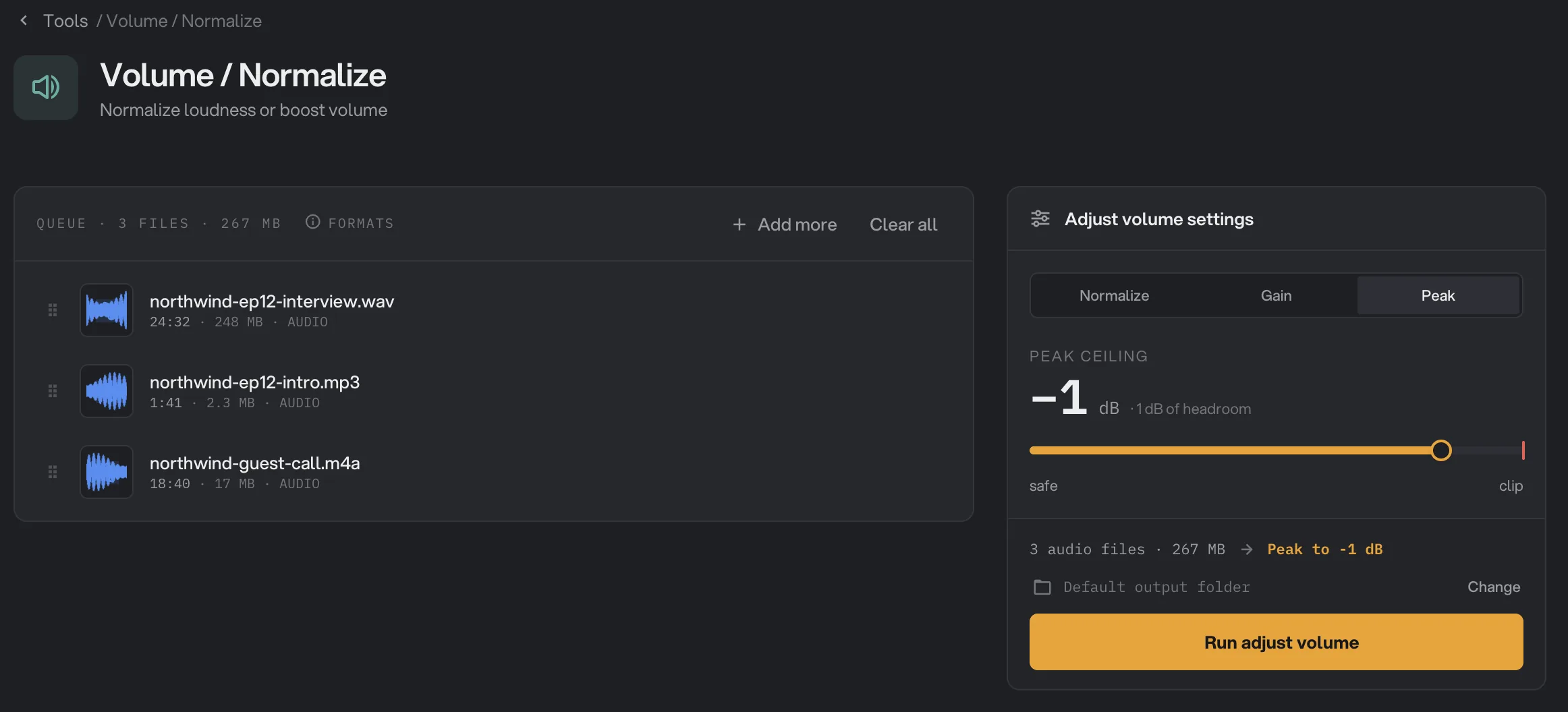
- Peak
- Peak ceiling
- Ceiling slider
Step 4: Run, then check the result
Check where the files will go: Default output folder saves them in your workspace’s output folder, in a volume folder with a subfolder for today’s date, such as 10-15. Click Change to pick another folder for this run. Then click Run adjust volume.
When the run ends, each file shows Done and its size. Click View on a file to play it, and switch between Original and Output to hear the difference. The waveform picture is scaled to fit, so listen rather than look. Click Open folder to go to the new files. See See and compare your results and Where your files are saved.
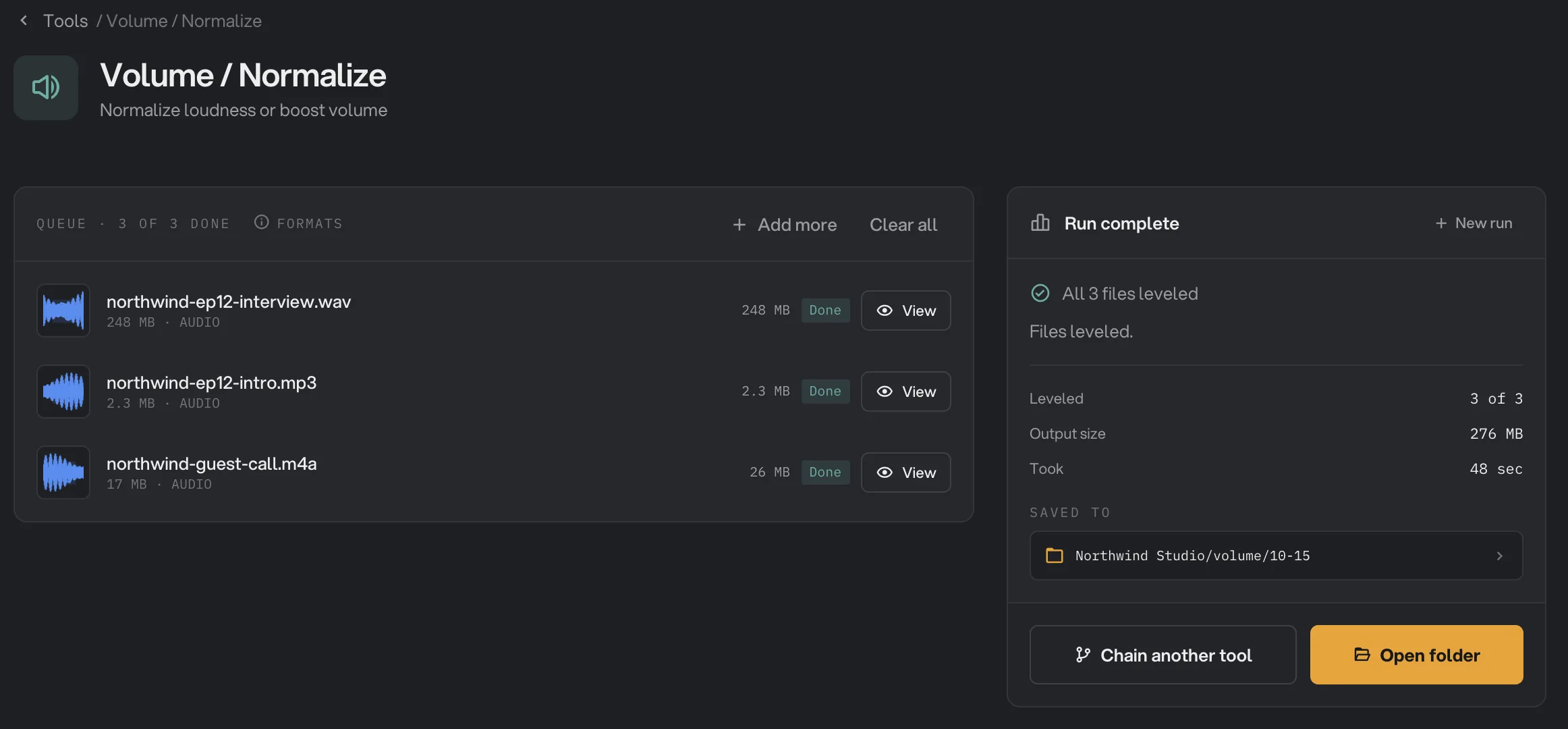
- Done
- View
- Saved to
- Open folder
Every setting, and when to change it
Pick the mode with the three buttons at the top of the panel. Each mode shows only its own setting.
- Normalize, Gain, Peak
How the volume is changed: to a loudness target, by a fixed amount, or to a ceiling for the loudest moment.
- RangeOne of the three
- DefaultNormalize
- Target loudness
With Normalize, how loud each whole file should sound. Closer to zero is louder.
- Range-24 to -9 LUFS, whole numbers
- Default-14 LUFS
- Gain
With Gain, the same change for every file. Positive is louder, negative is quieter.
- Range-30 to +30 dB, in steps of 0.5
- Default0 dB
- Peak ceiling
With Peak, where the loudest moment of each file should sit. 0 dB is the maximum a file can hold.
- Range-6 to 0 dB, in steps of 0.5
- Default-1 dB
What format do the new files use?
Volume / Normalize rebuilds every file, so it saves a new copy in a format close to the original:
- MP3 stays MP3, Opus stays Opus, and WAV and AIFF become WAV.
- AAC and M4A files become AAC (.m4a) at 192 kbps. Lossless ALAC files in .m4a also become AAC.
- FLAC files become WAV, so they are usually larger.
- OGG, WMA and other formats become AAC (.m4a).
WAV results are 16-bit. To get FLAC or another format afterward, run the results through Audio Convert.
How do I get the best results?
- Normalize a whole batch at once. Run every episode, clip or track together with the same target, and they will all sound equally loud.
- Prefer Normalize or Peak to Gain when making audio louder. Both measure the file first; Gain does not.
- Level before you shrink. Run Volume / Normalize on your best copy, then compress or convert the result, so the sound is squeezed into a smaller format only once, at the end.
- Listen to one file first. Click View, play the Output, and check that it sounds right before you publish the batch.
Why is the result not what I expected?
- Background noise got louder. Raising the volume raises everything in the recording, including hiss and hum.
- Peak barely changed the file. One loud moment, such as a cough or a clap, sets the limit for the whole file. Use Normalize instead.
- A quiet voice and a loud voice in the same file still differ. Normalize sets each file’s overall loudness. It is not made to even out different speakers within one recording.
- The loud parts sound harsh. The Gain boost was too high. Lower it, or use Normalize or Peak.
- The file is bigger than the original. The new copy uses a higher quality than a small original, or a FLAC file came back as WAV. Use Audio Compress afterward if size matters.
- The cover picture is gone. Volume / Normalize does not keep cover art.
Troubleshooting
- A file failed with a message that Hangar couldn't measure its loudness or peak. Check that the file plays and has sound. Converting it with Audio Convert first can help.
- A file failed with a message that the audio is silent. Normalize found no sound to bring to the target. Check that you added the right file and that it plays.
- A file failed with a message that it has no audio track. The file holds no sound Hangar can read.
- A video file is listed under Not applicable. Take its sound out with Extract Audio first.
For other errors, see A file failed: what to check.
Limits
- Volume / Normalize takes audio files, such as MP3, WAV, FLAC, AAC, M4A, OGG, Opus, AIFF and WMA. Not video files.
- Target loudness from -24 to -9 LUFS, Gain from -30 to +30 dB, Peak ceiling from -6 to 0 dB.
- All files in a run get the same mode and setting.
- It does not remove noise or even out different voices within one file.
- Only the first audio track of a file is used. Cover art is not kept.
- Add audio files, not folders.
- Everything runs on your computer. Nothing is uploaded.
Use Volume / Normalize in a chain
Volume is available as a step in chains, under the Audio steps, with the same Normalize, Gain and Peak settings as the tool.
Put it before Compress or Convert, so each file is leveled first and encoded to its final format at the end. To run the same chain on new files each week, see Run a chain on many files.
Common questions
Which mode should I use?
Normalize, in most cases. It makes every file in the run sound about equally loud. Use Peak when you want the loudest moment at an exact level, and Gain when you know exactly how many decibels louder or quieter you want a file.
What does -14 LUFS mean?
LUFS is a unit for how loud a whole recording sounds. The numbers are negative, and closer to zero means louder. -14 LUFS is the default, and the app marks it as the streaming standard.
Can it make my audio distort?
Normalize keeps the loudest moments a little below the maximum, and only touches those moments, never the rest of the file. Peak puts them exactly where you set the ceiling. Gain does not check, so a big boost can push loud parts past the maximum and make them sound harsh.
Will it remove background noise?
No. Volume / Normalize changes how loud the whole file is. When it makes a quiet recording louder, any hiss or hum gets louder too.
Is my original changed?
No. Hangar saves the new file, with "-vol" added to its name, in your output folder and leaves the original where it was.
Still stuck?
One person reads every message, usually with a reply within a day.