 Agencies and studios
 Photographers
 Podcasters
 Video and social creators
 Marketers and content teams
What does Convert video do?
Convert video saves your videos again in another format, on your own computer. Use it when a clip will not play somewhere, when a website wants MP4 or WebM, or when an editing app wants MOV. In the app the tool is called Video Convert.
You pick four things: the file type (Container), how the picture is stored (Video codec), how the sound is stored (Audio), and a Quality level. Video Convert gives back one new file for each video, with the same name and the new file extension.
Step 1: Add your videos
Click Tools in the sidebar, open the Video tab and click Video Convert in the Convert section. You can also type "convert" in the search box at the top.
Drop your videos on the queue, or click it to pick files. Video Convert takes MP4, MOV, MKV, WebM, AVI, M4V, MPG, MPEG, TS, MTS, M2TS, 3GP and WMV files. Other files are listed under Not applicable and are skipped. Use Add more to add files later.
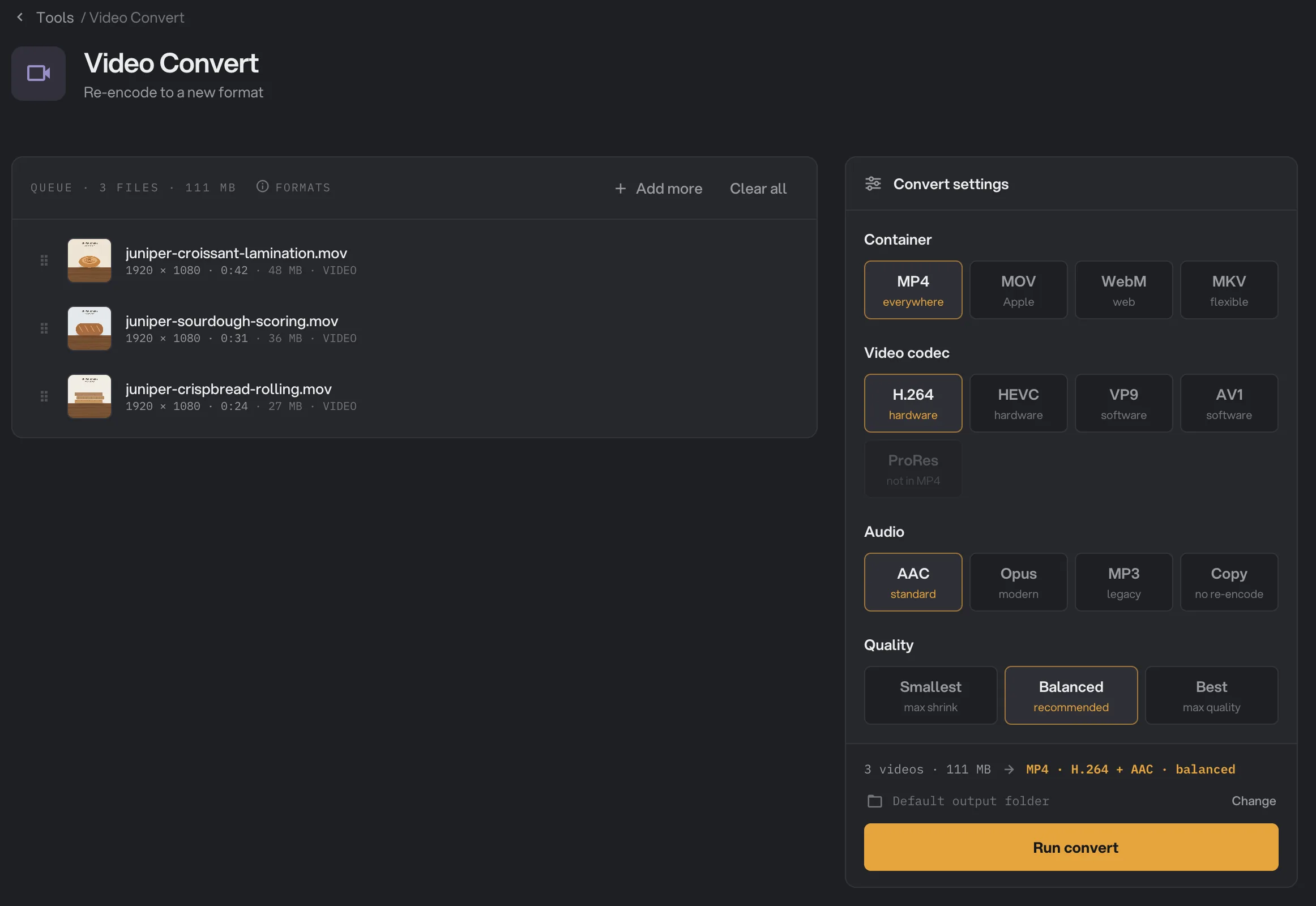
- Container
- Video codec
- Audio
- Quality
- Run convert
Step 2: Choose the container and codecs
Under Convert settings, start with Container. It sets the file type and extension:
- MP4 plays almost everywhere: phones, computers, social sites and web pages. The default.
- MOV is Apple’s format, handy for editing apps. It is the only container that takes ProRes.
- WebM is made for web pages.
- MKV holds almost any codec. Good for keeping or archiving, not for the web.
Then pick a Video codec. H.264 is the most compatible. HEVC makes smaller files at the same quality and plays on recent devices. VP9 and AV1 are open formats made for the web. ProRes makes very large, high-quality files for editing.
A codec or audio choice the container cannot hold is grayed out, with a hint such as "not in WEBM". When you change the container, the panel switches to choices that fit it. For example, picking WebM sets VP9 and Opus.
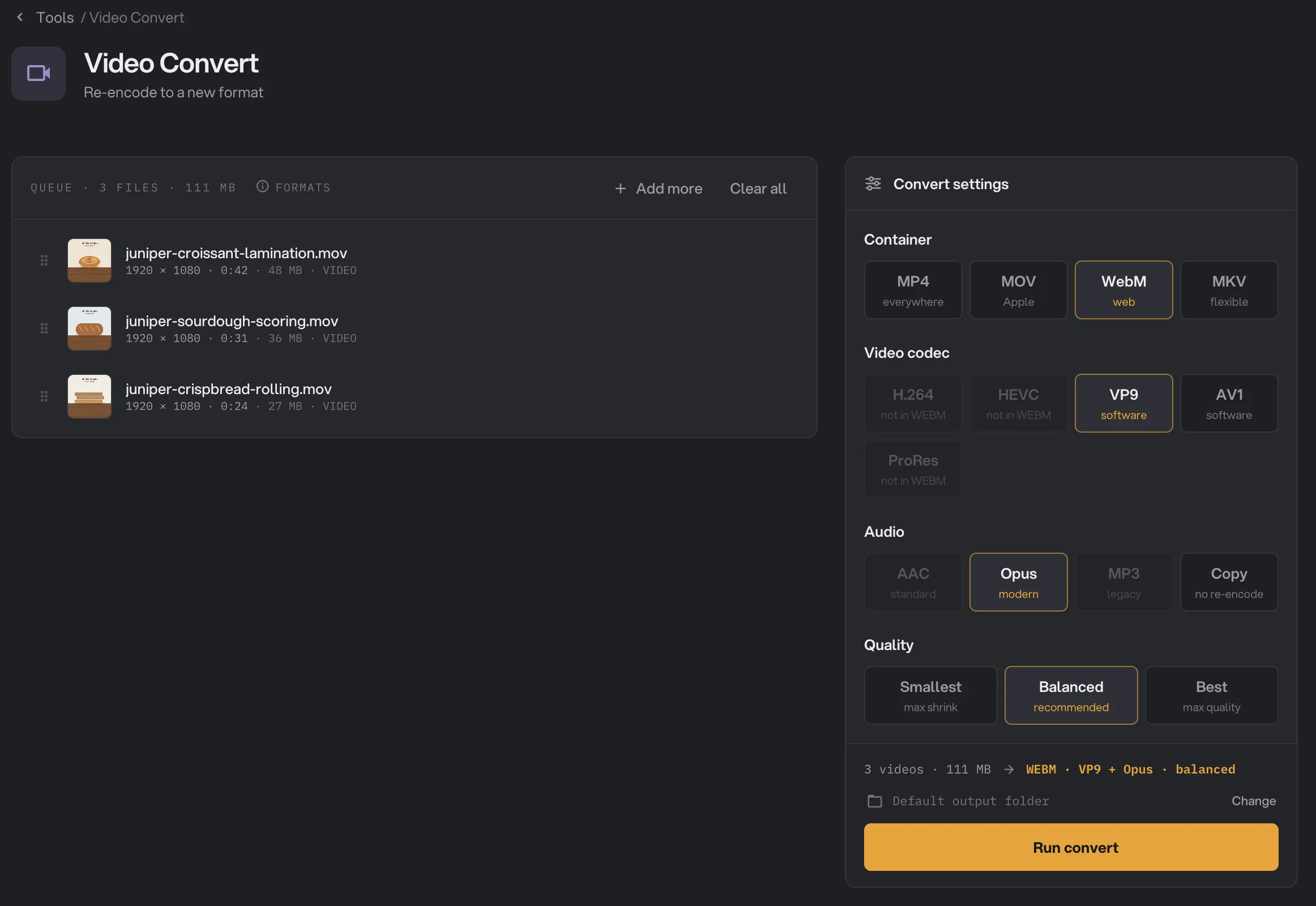
- Container
- Video codec
- ProRes
- Audio
Step 3: Pick the audio and quality
Under Audio, AAC is the standard choice for MP4 and MOV, Opus is the modern choice for WebM, and MP3 suits older players. Copy keeps the original sound exactly as it is, without saving it again.
Under Quality, Balanced is recommended. Smallest makes smaller files with a softer picture. Best keeps the most detail and makes larger files. Quality also sets how much detail the sound keeps. The line above the run button sums up your choice, for example "MP4 · H.264 + AAC · balanced".
Step 4: Run, then check the result
Check where the files will go: Default output folder saves them in your workspace’s output folder, in a convert folder with a subfolder for today’s date, such as 10-15. Click Change to pick another folder for this run. Then click Run convert.
When the run ends, each video shows Done with its new size. If the batch got smaller, the panel shows how much space you saved. Click View on a file to compare the Original and the Output, and Open folder to go to the new files. See See and compare your results and Where your files are saved.
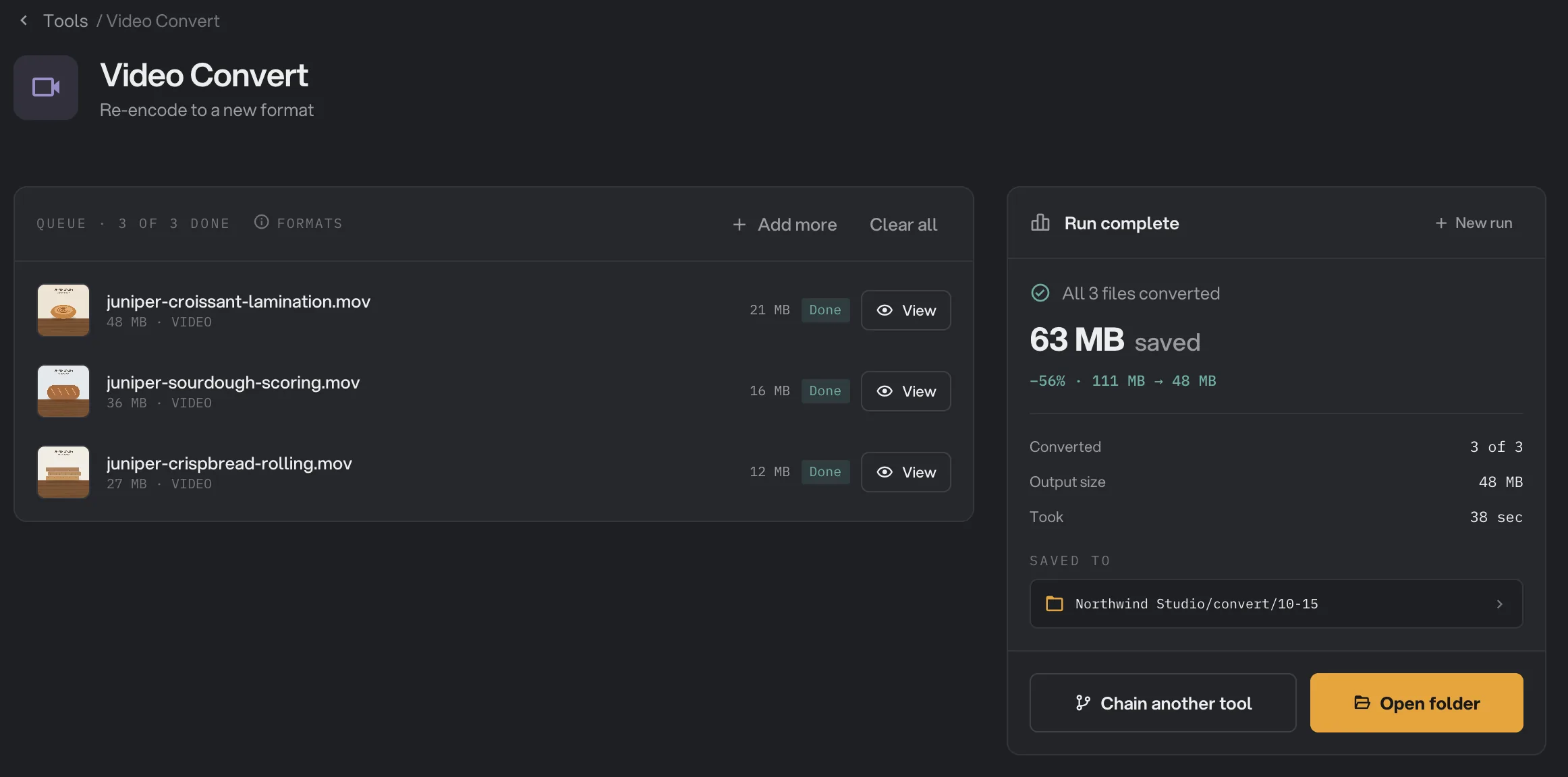
- Done
- View
- Saved to
- Open folder
Every setting, and when to change it
All four settings are rows of tiles. A grayed-out tile is not available with your current container, or needs hardware your computer does not have.
- Container
The file type and extension of the new file. MP4 plays almost everywhere. MOV suits Apple editing apps. WebM is for web pages. MKV holds most codecs.
- RangeMP4, MOV, WebM, MKV
- DefaultMP4
- Video codec
How the picture is stored. MP4 and MKV take H.264, HEVC, VP9 and AV1. MOV takes H.264, HEVC and ProRes. WebM takes VP9 and AV1.
- RangeH.264, HEVC, VP9, AV1, ProRes
- DefaultH.264
- Audio
How the sound is stored. Copy keeps the original sound as it is. WebM takes Opus or Copy; MOV takes AAC, MP3 or Copy.
- RangeAAC, Opus, MP3, Copy
- DefaultAAC
- Quality
Trades file size for detail, for both the picture and the sound. With ProRes, it picks a lighter or a fuller ProRes level.
- RangeSmallest, Balanced, Best
- DefaultBalanced
How do I get the best results?
- When in doubt, use the defaults. MP4 with H.264 and AAC at Balanced plays on almost every phone, computer and website.
- For a smaller file that still plays on recent devices, pick HEVC in MP4 or MOV.
- For web pages, pick WebM, or MP4 with H.264 for the widest support. MP4 files are saved so playback can start before the whole file has downloaded.
- For editing, pick MOV with ProRes. Expect very large files.
- Use Copy for the sound when the new container accepts it, so the audio is not saved again. If a file then fails, pick AAC or Opus instead.
- Try one video first. Run a single clip, check it with View, then run the rest.
Why is the new file bigger, or not as sharp?
- You picked a heavier format. ProRes and the Best quality make large files on purpose.
- The original was already small. Phone and web videos are often well compressed. Saving them again rarely makes them much smaller, and can soften fine detail.
- Smallest trades detail for size. Try Balanced for a sharper picture.
- You want a smaller file in the same format. Use Video Compress instead. It keeps the format and only keeps a result that is really smaller.
Troubleshooting
- H.264 and HEVC say needs GPU. Hangar found no video encoding hardware it can use. Pick VP9 or AV1, or ProRes in MOV.
- A file failed with a message that H.264/HEVC needs a supported GPU. This can happen if you pick H.264 or HEVC right after Hangar opens, before it has finished checking your hardware. Pick VP9 or AV1 and run the file again.
- A file failed with Copy audio. The new container cannot hold that video’s original sound. Pick AAC or Opus under Audio and run it again.
- View shows only a still frame. The app’s player cannot play that format. The file is fine. Click Open folder and play it in another player.
- A conversion takes a long time. VP9, AV1 and ProRes do not use video encoding hardware, so they can take much longer than H.264 and HEVC.
For other errors, see A file failed: what to check.
Limits
- Video Convert takes MP4, MOV, MKV, WebM, AVI, M4V, MPG, MPEG, TS, MTS, M2TS, 3GP and WMV files, and saves MP4, MOV, WebM or MKV.
- H.264 and HEVC need video encoding hardware: the encoder built into a Mac, or NVIDIA, Intel or AMD graphics on Windows.
- ProRes works in MOV only.
- The picture size and frame rate stay the same. To change the size, use Resize Video.
- Add video files, not folders.
- Everything runs on your computer. Nothing is uploaded.
Use Video Convert in a chain
Convert is available as a step in chains, under the Video steps, with the same Container, Video codec, Audio and Quality tiles as the tool.
Put Convert last. Steps such as Resize and Rotate / Flip always save MP4, so they would turn the result of an earlier Convert step back into MP4. To run the same chain on new files each week, see Run a chain on many files.
Common questions
How do I turn iPhone MOV videos into MP4?
Add the MOV files to Video Convert and keep the defaults: MP4, H.264, AAC and Balanced. Click Run convert. Each video is saved again as an MP4 with the same name, which plays on almost every computer, phone and website.
Which container should I pick?
MP4 plays almost everywhere, so it is the safe choice. MOV suits Apple editing apps and is the only one that takes ProRes. WebM is made for web pages. MKV is a flexible file that holds most codecs but is not meant for the web.
Why are H.264 and HEVC grayed out?
These two need video encoding hardware: the encoder built into a Mac, or NVIDIA, Intel or AMD graphics on Windows. When Hangar finds none, their tiles read needs GPU and the panel picks AV1 for you. VP9, AV1 and ProRes do not need this hardware.
Can it change the resolution or frame rate?
No. Video Convert keeps the picture size and frame rate. To change the size, use Resize Video. To make a file smaller in its current format, use Video Compress.
Will the converted file be smaller?
Often, but not always. A new format or a higher quality can make a file larger, and Video Convert always saves the new file. The results card shows the total saved when the batch got smaller.
Is my original changed?
No. Hangar saves the converted copy in your output folder and leaves the original where it was.
Still stuck?
One person reads every message, usually with a reply within a day.