 Agencies and studios
 Photographers
 Podcasters
 Video and social creators
 Marketers and content teams
What does Mute video do?
Mute video removes the sound from a batch of videos, on your own computer. In the app the tool is called Mute Video. Use it to take out background chatter, wind noise or music you cannot use, or to share a clip without sound.
The picture is copied exactly as it was, so there is no quality loss, and each video keeps its format and name. There are no settings to choose.
Step 1: Open Mute Video and add your videos
Click Tools in the sidebar, open the Video tab and click Mute Video in the Edit section. You can also type "mute" in the search box at the top.
Drop your videos on the queue, or click it to pick files. MP4, MOV, MKV, WebM, AVI and other common video files work.
The panel, Mute settings, has no controls. It reminds you that the sound will be removed from each video and that the picture is copied untouched.
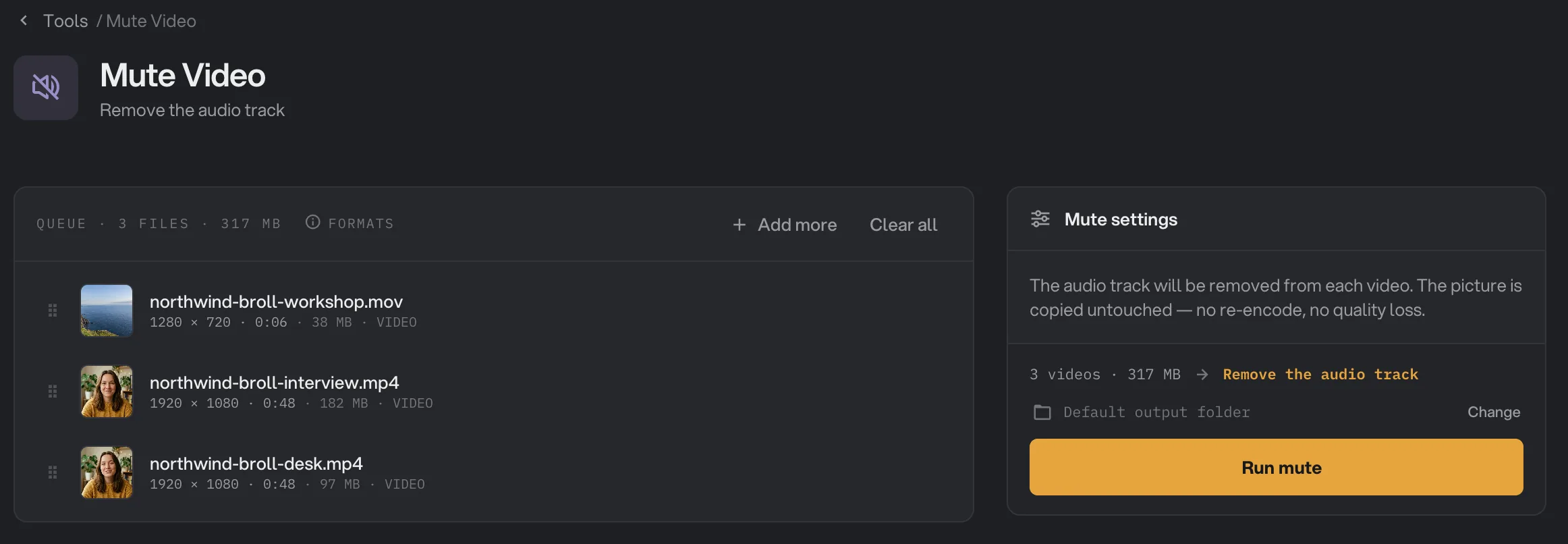
- The audio track will be removed
- Remove the audio track
- Run mute
Step 2: Run, then check the result
Check where the files will go: Default output folder saves them in your workspace’s output folder, in a mute folder with a subfolder for today’s date, such as 10-15. Click Change to pick another folder for this run. Then click Run mute.
Muting is quick because the picture is copied, not saved again. Each video shows Done when it is ready. The silent copies are usually a little smaller, and the results show how much space was saved. Click Open folder to go to them. See See and compare your results and Where your files are saved.
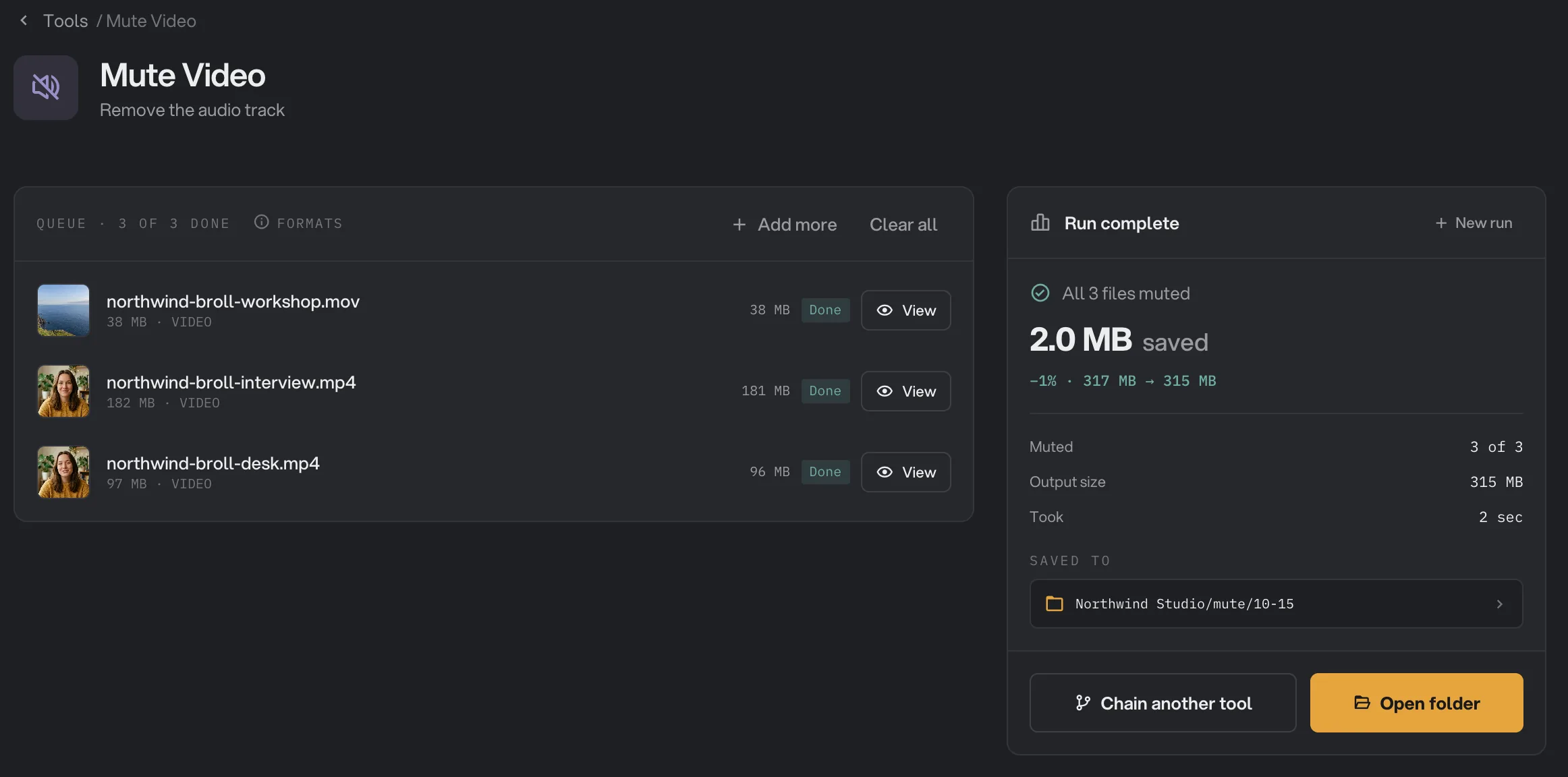
- Done
- View
- Saved to
- Open folder
Every setting, and when to change it
Mute Video has no settings. It always does the same thing:
- Sound
Every audio track is removed, including extra language or commentary tracks.
- Picture
Copied exactly, with no re-encoding and no quality loss.
- Format and name
Kept. The copy has the same name and format as the original.
How do I get a good result?
- Trim first if you need a shorter clip. Cut it with Trim video, then mute the result.
- Replacing the sound? Skip this tool and use Add audio with Replace. It removes the original sound and adds your track in one run.
- Keep the originals until you have checked the silent copies. Once the sound is removed from a copy, it cannot be brought back from that copy.
Why does a result disappoint?
- I only wanted to remove one of several audio tracks. Mute Video removes all of them. It cannot pick one track.
- The file is barely smaller. Sound takes up little space next to the picture. To make a video much smaller, use Compress video.
- A video failed. Check that it plays in another app. If it does, convert it to MP4 with Convert video, then mute the MP4. See A file failed: what to check.
Limits
- The sound is removed from the whole clip. You cannot mute only a section.
- All audio tracks are removed. You cannot keep one and drop another.
- A video that already has no sound is simply copied.
- Everything runs on your computer. Nothing is uploaded.
Use Mute video in a chain
Mute is available as a step in chains, under the Video steps. Like the tool, it has no settings: it removes the audio track from each video.
A common chain mutes b-roll and then compresses it, so the clips are silent and small enough to share. A chain also remembers your steps; see Run a chain on many files.
Common questions
Does muting lower the picture quality?
No. The picture is copied exactly as it was. Only the sound is taken out, so there is no quality loss.
Does it keep my video format?
Yes. A MOV stays a MOV and an MP4 stays an MP4, with the same name.
Can I mute many videos at once?
Yes. Add as many videos as you like to the queue and click Run mute once. Every one comes out silent.
Can I mute only part of a video?
No. Mute Video removes the sound from the whole clip.
How do I replace the sound with music?
Use Add audio with Replace. It drops the original sound and adds your track in one step, so you do not need to mute first.
Is my original video changed?
No. Hangar saves a silent copy in your output folder and leaves the original where it was.
Still stuck?
One person reads every message, usually with a reply within a day.