 Agencies and studios
 Photographers
 Podcasters
 Video and social creators
 Marketers and content teams
What does Resize video do?
Resize video changes the picture size of your videos on your own computer, for example from 4K down to 1080p, or to the exact size a platform asks for. In the app the tool is called Resize Video.
You set a width and height in pixels and choose how the picture fits that size. Resize Video gives back one MP4 file for each video, with the same name, sound, length and frame rate.
Step 1: Add your videos
Click Tools in the sidebar, open the Video tab and click Resize Video in the Edit section. You can also type "resize" in the search box at the top.
Drop your videos on the queue, or click it to pick files. Resize Video takes MP4, MOV, MKV, WebM, AVI, M4V, MPG, MPEG, TS, MTS, M2TS, 3GP and WMV files. Other files are listed under Not applicable and are skipped. Use Add more to add files later.
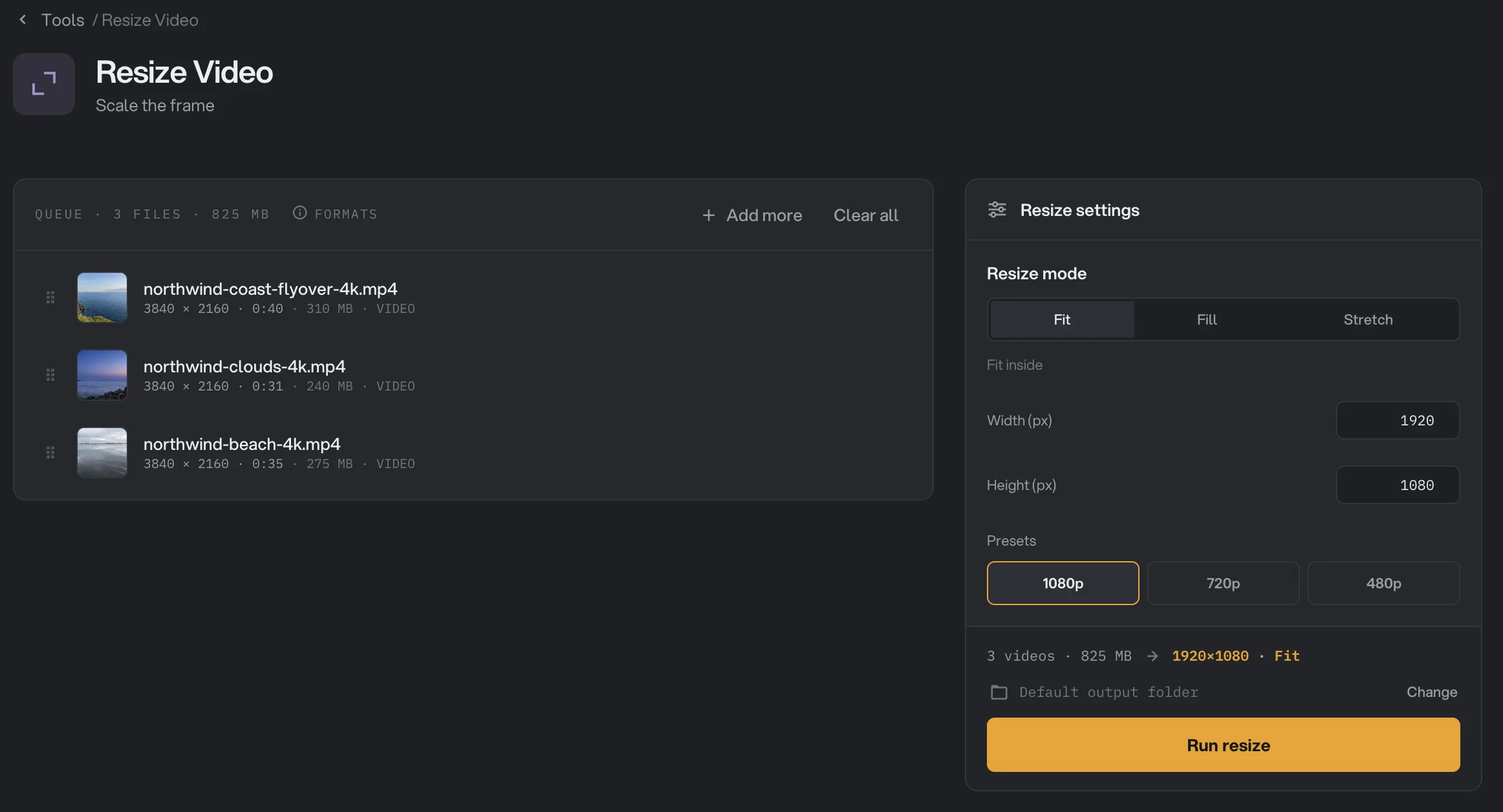
- Resize mode
- Width (px)
- Presets
- Run resize
Step 2: Choose the size
Under Resize settings, click a preset: 1080p (1920 × 1080), 720p (1280 × 720) or 480p (854 × 480). Or type your own numbers in Width (px) and Height (px), from 2 to 7680 pixels. The default is 1280 × 720.
Hangar rounds odd numbers down to the nearest even number, because video is saved in even sizes. For example, 1081 becomes 1080.
Step 3: Choose how it fits
Under Resize mode, pick one:
- Fit (the default) scales the whole picture to fit inside your size and keeps its shape. If the shape differs from your numbers, one side comes out smaller. Nothing is cut off and no bars are added.
- Fill scales the picture to cover your size, keeps its shape, and trims what sticks out, evenly from both sides. The result is exactly your size. Use it to make a square or vertical video from a wide one, or to hit an exact frame size.
- Stretch makes the video exactly your size and ignores its shape, so people and objects can look squashed or stretched.
The line above the run button sums up your choice, for example "1920×1080 · Fit".
Step 4: Run, then check the result
Check where the files will go: Default output folder saves them in your workspace’s output folder, in a resize folder with a subfolder for today’s date, such as 10-15. Click Change to pick another folder for this run. Then click Run resize.
When the run ends, each video shows Done with its new file size. Click View on a file to compare the Original and the Output, and Open folder to go to the new files. See See and compare your results and Where your files are saved.
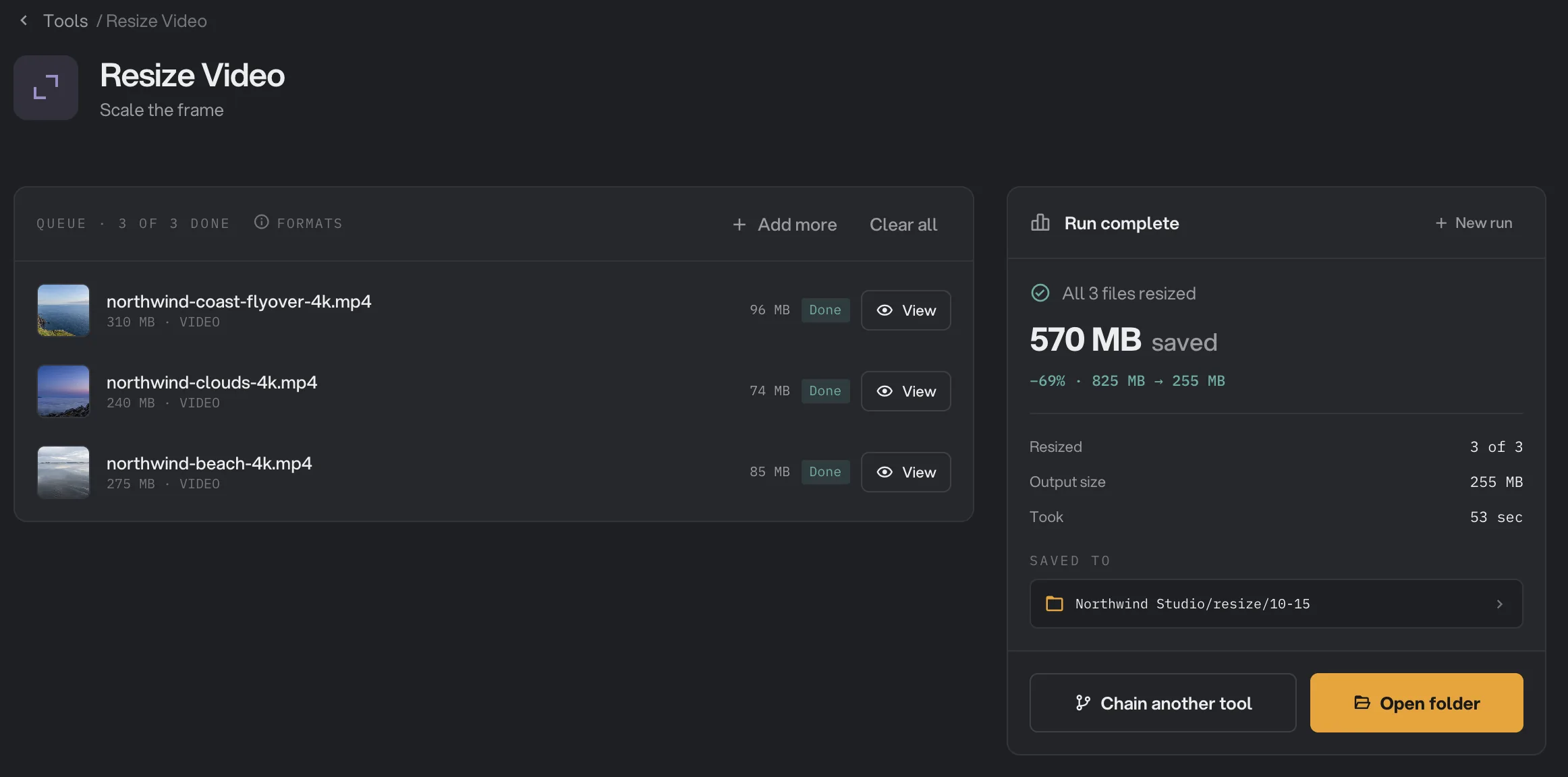
- Done
- View
- Saved to
- Open folder
Every setting, and when to change it
- Resize mode
Fit keeps the whole picture inside your size. Fill covers your size and trims the edges. Stretch forces the exact size and can distort.
- RangeFit, Fill, Stretch
- DefaultFit
- Width (px)
The target width in pixels. Odd numbers are rounded down to even.
- Range2 to 7680
- Default1280
- Height (px)
The target height in pixels. Odd numbers are rounded down to even.
- Range2 to 7680
- Default720
- Presets
Fill in both numbers for a common wide size: 1920 × 1080, 1280 × 720 or 854 × 480.
- Range1080p, 720p, 480p
- Default720p
How do I get the best results?
- Use Fit to shrink footage for the web or a phone. Nothing is cut off, and the shape stays right.
- Use Fill for an exact frame, such as 1080 × 1080 for a square post. Check that nothing important sits near the edges, since they are trimmed. For full control over which part stays, use Crop Video instead.
- Avoid scaling up. A 720p clip made 1080p is bigger but not sharper.
- Compress afterwards if size matters. Resize Video saves at the highest quality, so a resized file can be larger than you expect. Run the results through Video Compress to make them smaller.
Why is the resized file bigger?
- It is saved at the highest quality. Resize Video favors a clean picture over a small file. When the original was strongly compressed, as phone and web videos often are, the new file can be larger even at a smaller size.
- You scaled it up. More pixels make a larger file.
- The fix: run the resized videos through Video Compress.
Limits
- Resize Video takes MP4, MOV, MKV, WebM, AVI, M4V, MPG, MPEG, TS, MTS, M2TS, 3GP and WMV files.
- It always saves an MP4. To get another format, use Video Convert afterwards.
- The MP4 uses H.264 when Hangar finds video encoding hardware: the encoder built into a Mac, or NVIDIA, Intel or AMD graphics on Windows. Without it, the MP4 uses AV1, which can take longer to save and may not play on older devices.
- Width and height go from 2 to 7680 pixels, in even numbers.
- The same size applies to every video in the run.
- Add video files, not folders.
- Everything runs on your computer. Nothing is uploaded.
Use Resize Video in a chain
Resize is available as a step in chains, under the Video steps, with the same Resize mode, Width, Height and presets as the tool.
A useful pair is Resize, then Compress: the first sets the size, the second makes the file small. Because Resize always saves MP4, put a Convert step after it if you need another format. To run the same chain on new files each week, see Run a chain on many files.
Common questions
How do I turn 4K video into 1080p?
Add your clips to Resize Video, keep Fit under Resize mode and click the 1080p preset. Each clip is scaled to fit inside 1920 by 1080 pixels without changing its shape.
Will I get black bars?
No. Fit keeps the whole picture and its shape, so if the shape differs from your numbers, one side simply comes out smaller. Fill fills your exact size and trims the edges. Neither adds bars.
Does it keep the shape of the picture?
Fit and Fill keep the shape. Stretch makes the video exactly your size even if that squashes or stretches the picture.
Can it make a small video bigger?
Yes. Fit, Fill and Stretch all scale a smaller video up to your size. A video made bigger does not gain detail, so it can look soft.
What format is the new video?
Always MP4, with the same name. The sound is kept, and the length and frame rate do not change. The picture is saved as H.264 when your computer has video encoding hardware Hangar can use, and as AV1 when it does not.
Is my original changed?
No. Hangar saves the resized copy in your output folder and leaves the original where it was.
Still stuck?
One person reads every message, usually with a reply within a day.