 Agencies and studios
 Photographers
 Podcasters
 Video and social creators
 Marketers and content teams
What does Crop video do?
Crop video cuts away the edges of your videos on your own computer, so you keep only the part of the picture you want. Use it to make a square or vertical version of a wide clip, or to remove a distracting edge. In the app the tool is called Crop Video.
You set one crop for the whole batch in the side panel, and can give any clip its own crop in the Crop studio. Crop Video gives back one MP4 file for each video, with the same name, sound, length and frame rate.
Step 1: Add your videos
Click Tools in the sidebar, open the Video tab and click Crop Video in the Edit section. You can also type "crop" in the search box at the top.
Drop your videos on the queue, or click it to pick files. Crop Video takes MP4, MOV, MKV, WebM, AVI, M4V, MPG, MPEG, TS, MTS, M2TS, 3GP and WMV files. Other files are listed under Not applicable and are skipped. Use Add more to add files later.
Step 2: Set the crop for the batch
Under Crop settings, a still frame of the first video shows the crop box. Click another row in the queue to preview that video instead. Everything outside the box is dimmed and will be cut away. To start from a common shape, click a chip under Aspect ratio:
- 9:16 for vertical videos, such as stories and short videos.
- 1:1 for square posts, and 4:5 for tall feed posts.
- 16:9 and 4:3 for wide and classic screens.
- Free for any shape.
A chip makes the box the largest area of that shape in the middle of the frame and keeps that shape while you resize it. Drag the box to move it, and drag a handle on its edge or corner to resize it. The guide lines split the box in thirds to help you place your subject.
For exact numbers, open Precise values and type Left (X), Top (Y), Width and Height as a percentage of the frame. The default keeps the middle 80%, cutting 10% from each side.
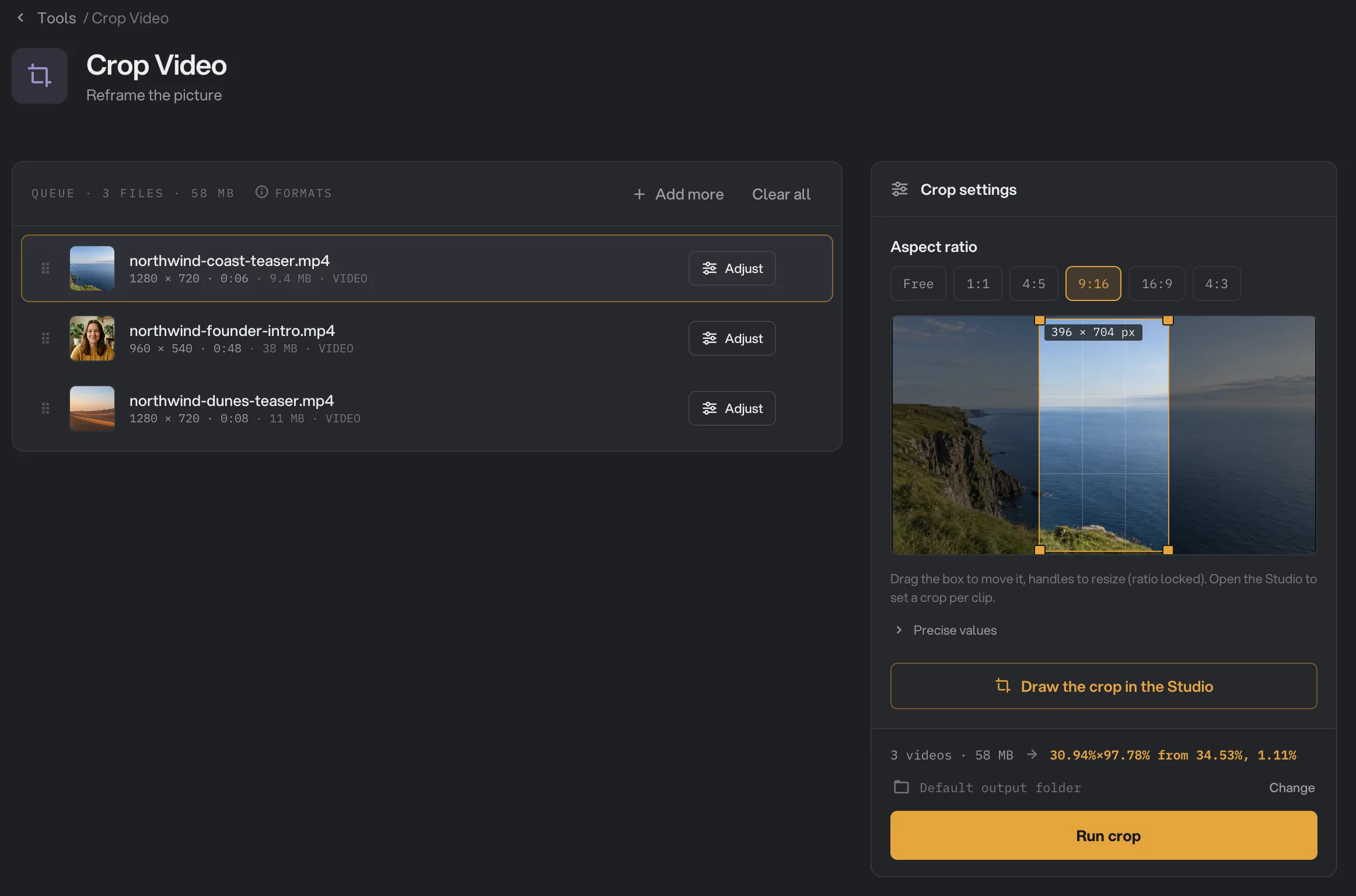
- 9:16
- Precise values
- Draw the crop in the Studio
- Run crop
Step 3: Give a clip its own crop in the Crop studio
When a subject sits in a different place in one clip, click Draw the crop in the Studio, or Adjust on that clip’s row. The Crop studio opens with the clip playing, silently and on a loop, under a large crop box. For a format the app cannot play, you see a still frame instead.
- Use the arrows at the top, the thumbnails at the bottom, or the Left and Right arrow keys to move between clips.
- Turn on Override this file to give the clip its own crop. It starts from the shared crop, gets a ★ custom badge, and a star on its thumbnail. Then move the box or type exact values.
- With Override this file off, any change you make in the Studio changes the shared crop for every clip.
- Reset to batch removes the clip’s own crop.
Click Done, or press Esc, to close the Studio. Clips with their own crop show a star next to Adjust, and the Studio button shows how many there are. When the clip previewed in the side panel has its own crop, the panel’s box changes that clip’s crop, not the shared one.
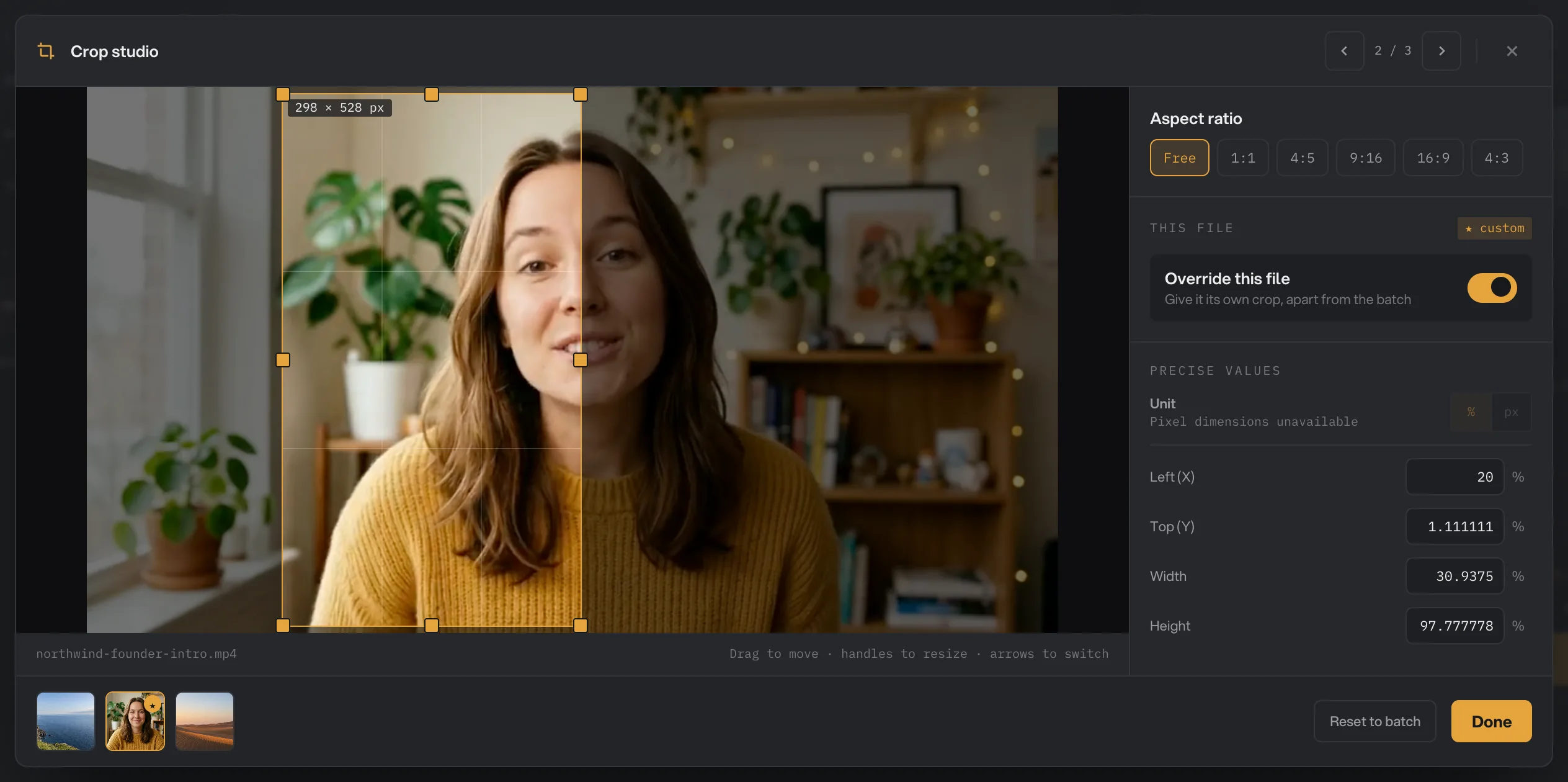
- Aspect ratio
- Override this file
- Left (X)
- Reset to batch
- Done
Step 4: Run, then check the result
Check where the files will go: Default output folder saves them in your workspace’s output folder, in a crop folder with a subfolder for today’s date, such as 10-15. Click Change to pick another folder for this run. Then click Run crop.
When the run ends, each video shows Done with its new file size. Click View on a file to compare the Original and the Output, and Open folder to go to the cropped copies. See See and compare your results and Where your files are saved.
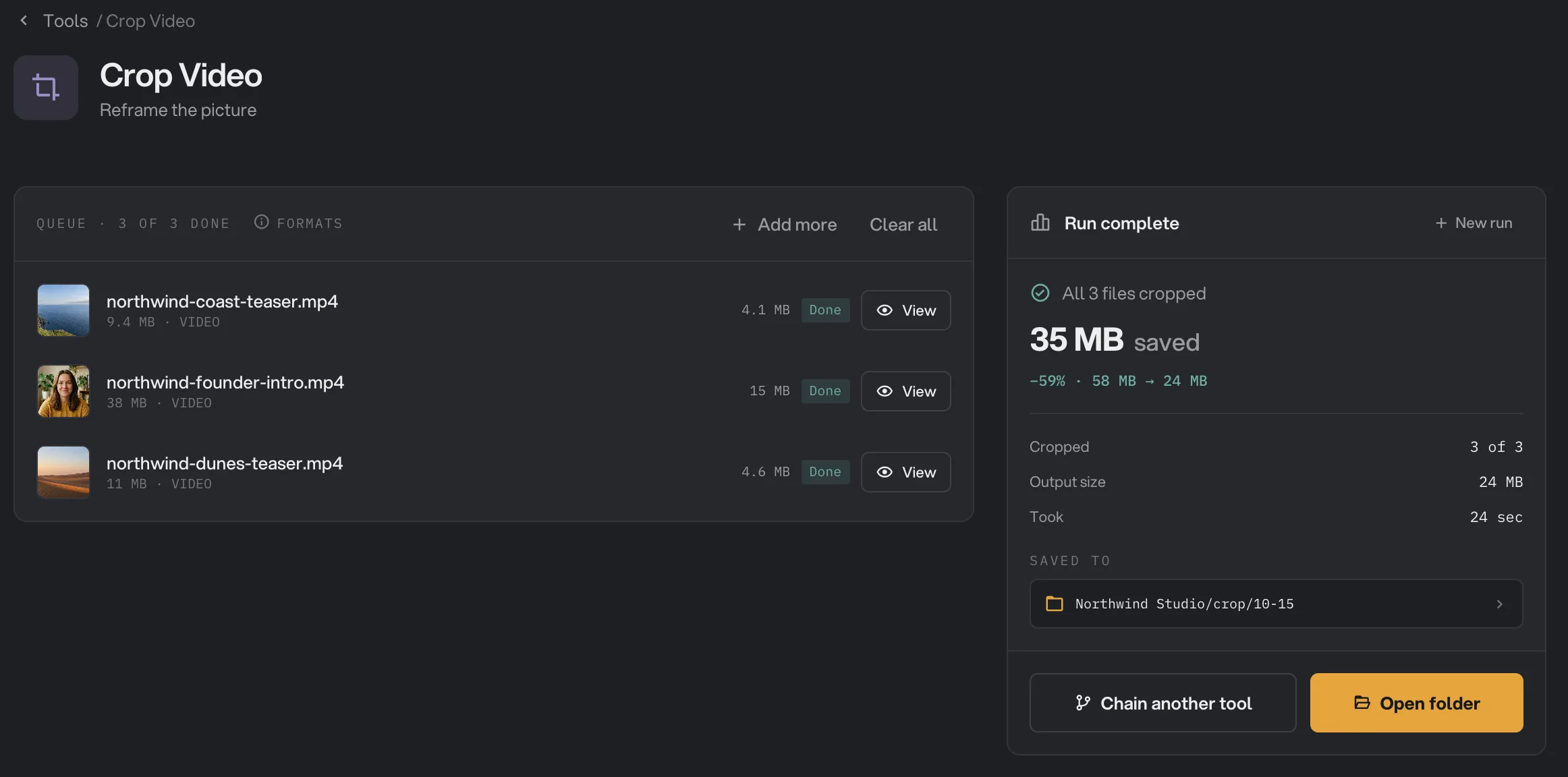
- Done
- View
- Saved to
- Open folder
Every setting, and when to change it
The panel and the Crop studio have the same settings. Override this file is in the Studio only.
- Aspect ratio
Sets the box to the largest centered area of that shape and keeps the shape while you resize. Free lets you draw any shape.
- RangeFree, 1:1, 4:5, 9:16, 16:9, 4:3
- DefaultFree
- Left (X)
Where the crop starts, measured from the left edge of the frame.
- Range0 to 100%
- Default10%
- Top (Y)
Where the crop starts, measured from the top edge of the frame.
- Range0 to 100%
- Default10%
- Width
How much of the frame width to keep.
- Range0 to 100%
- Default80%
- Height
How much of the frame height to keep.
- Range0 to 100%
- Default80%
- Override this file
In the Crop studio, gives the current clip its own crop instead of the shared one.
- RangeOn, Off
- DefaultOff
How do I get the best results?
- Start with a ratio chip. It gives the exact shape a platform expects. Then only move the box, without resizing it.
- Check each clip in the Studio. Step through the clips with the arrow keys. Where the subject sits elsewhere, turn on Override this file.
- Watch the whole clip. The Studio plays each clip on a loop, so you can see whether the subject moves out of the box later on.
- Crop from the largest original you have. A crop keeps only part of the pixels, so a 4K source gives a much sharper vertical clip than a 720p one.
- Need a set size, too? Run the cropped videos through Resize Video, for example to 1080 × 1920.
Why does the cropped video look soft, or come out large?
- Fewer pixels. A crop throws away the rest of the frame, so a small crop of a small video has little detail left.
- Highest quality. Crop Video saves at the highest quality, so a cropped file can be larger than you expect, or even larger than a heavily compressed original. Run it through Video Compress afterwards.
- Even sizes. Hangar rounds the crop to even pixel sizes, so it can differ from your numbers by a pixel.
Troubleshooting
- A file failed with a message that the crop area is too small. Width or Height is 0. Set both above 0 under Precise values.
- The crop is in the wrong place on one clip. Open it in the Crop studio and turn on Override this file.
- My per-clip crops are gone. They are not saved when you quit Hangar. Set them again in the Studio.
For other errors, see A file failed: what to check.
Limits
- Crop Video takes MP4, MOV, MKV, WebM, AVI, M4V, MPG, MPEG, TS, MTS, M2TS, 3GP and WMV files.
- It always saves an MP4. To get another format, use Video Convert afterwards.
- The MP4 uses H.264 when Hangar finds video encoding hardware: the encoder built into a Mac, or NVIDIA, Intel or AMD graphics on Windows. Without it, the MP4 uses AV1, which can take longer to save and may not play on older devices.
- The crop box stays still for the whole clip. It does not follow a moving subject.
- Crop values are in percent of the frame.
- Per-clip crops last until you quit Hangar.
- Crop Video is not available as a chain step.
- Add video files, not folders.
- Everything runs on your computer. Nothing is uploaded.
Common questions
How do I make a vertical video from a wide one?
Add the clips to Crop Video and click 9:16 under Aspect ratio. The box becomes the tallest vertical area in the middle of the frame. Drag it sideways to frame your subject, then click Run crop.
Can each video have a different crop?
Yes. Open the Crop studio, go to the clip, turn on Override this file and move the box. That clip keeps its own crop and gets a star; the others use the shared crop.
Does cropping lower the quality?
The part you keep is saved at the highest quality, but it has fewer pixels than the full frame. A 9:16 crop of a 1080p video is about 600 pixels wide, so it looks softer on a large screen.
Does it work on phone videos?
Yes. The crop follows the picture the way you see it when it plays, even for clips filmed in portrait.
What format is the cropped video?
Always MP4, with the same name. The sound is kept, and the length and frame rate do not change. The picture is saved as H.264 when your computer has video encoding hardware Hangar can use, and as AV1 when it does not.
Is my original changed?
No. Hangar saves the cropped copy in your output folder and leaves the original where it was.
Still stuck?
One person reads every message, usually with a reply within a day.