 Agencies and studios
 Photographers
 Podcasters
 Video and social creators
 Marketers and content teams
What does SEO Image do?
SEO Image gets a batch of images ready for a website in one run. Each image gets a clear file name, a title, alt text and keywords, and the whole batch can share an author, a copyright, a license link and a place. It can also save them as JPEG or WebP at a web-friendly size. It runs on your computer. Your images go online only if you turn on Write with AI.
Use it for the images of one page or one place, such as a shop’s gallery, a product range or a set of photos from one job. You describe each image once, and the settings you share fill in the rest.
Step 1: Add your images
Click Tools in the sidebar, open the Image tab and click SEO Image. You can also type "seo" or "alt text" in the search box at the top.
Click Choose images, or drop your images on the screen.
Step 2: Set what every image shares
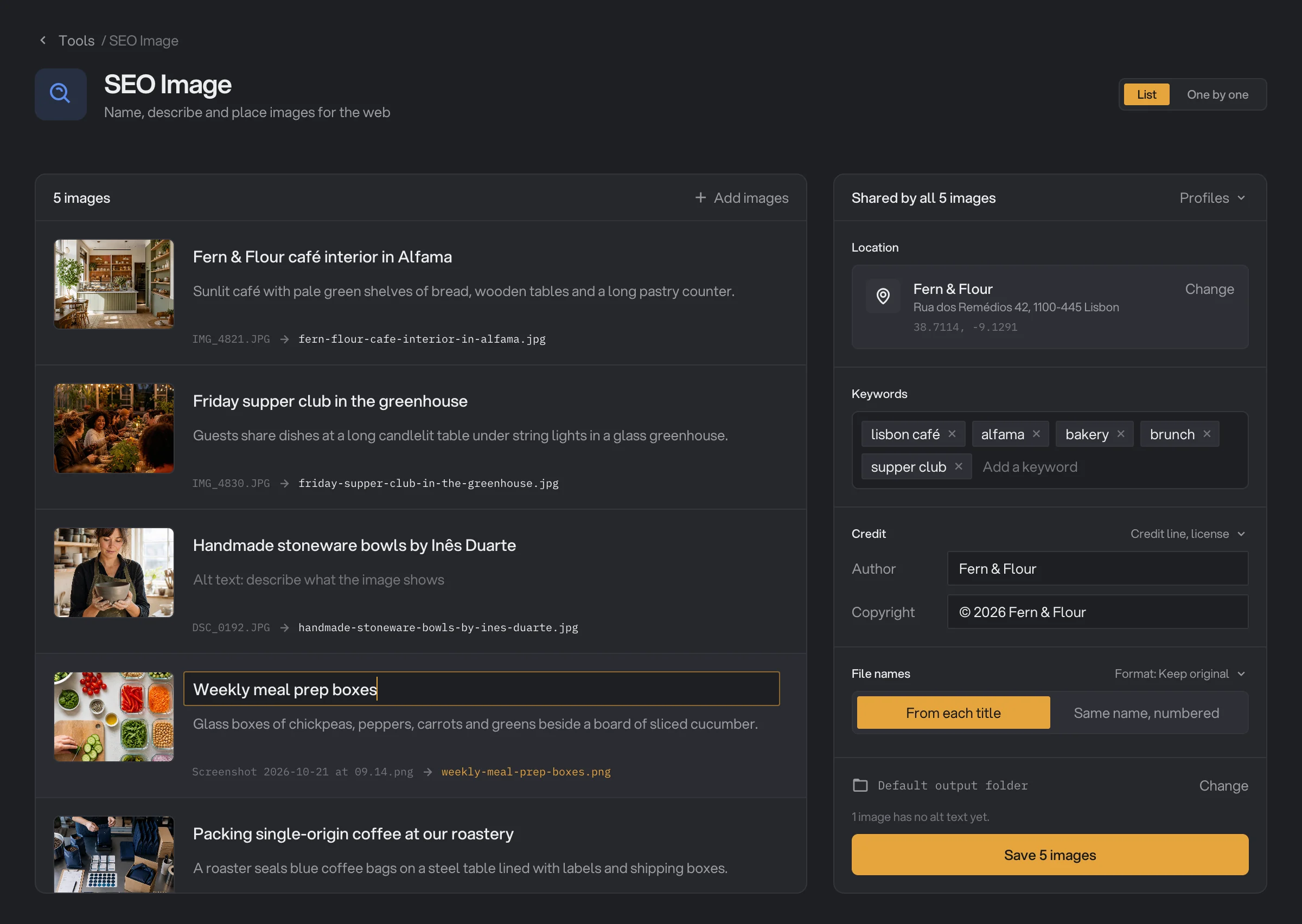
The panel on the right applies to the whole batch:
- Profiles, at the top of the panel, fills it with settings you saved. Good if you work for more than one business.
- Location sets the place. See Add a place.
- Keywords are added to every image. Type one and press Enter.
- Credit holds the Author and Copyright. Click Credit line, license to add those two as well.
- File names sets how the images are named, and Format, just above it on the right, sets how they are saved. See Every setting.
To save the panel for next time, open Profiles, type a name in Save these settings as a profile and press Enter. Saving under a name you already use updates that profile. Profiles stay on this computer.
Step 3: Describe each image
Click the Title of the first image, type it and press Enter. Type the Alt text and press Enter again to move to the next image. The new file name updates as you type, and the line above Save shows how many images still have no alt text.
For the alt text, describe what someone would miss if they could not see the image. To get a first draft for every image, use Write with AI.
To see an image large, click its picture, or click One by one at the top right. There you can give that image something of its own. Add a keyword adds a keyword for this image only, and Change next to Same as all images gives it a different place. Use the shared place undoes it. List takes you back.
You can save at any time. An image with no title keeps a clean version of its old name.
Step 4: Save
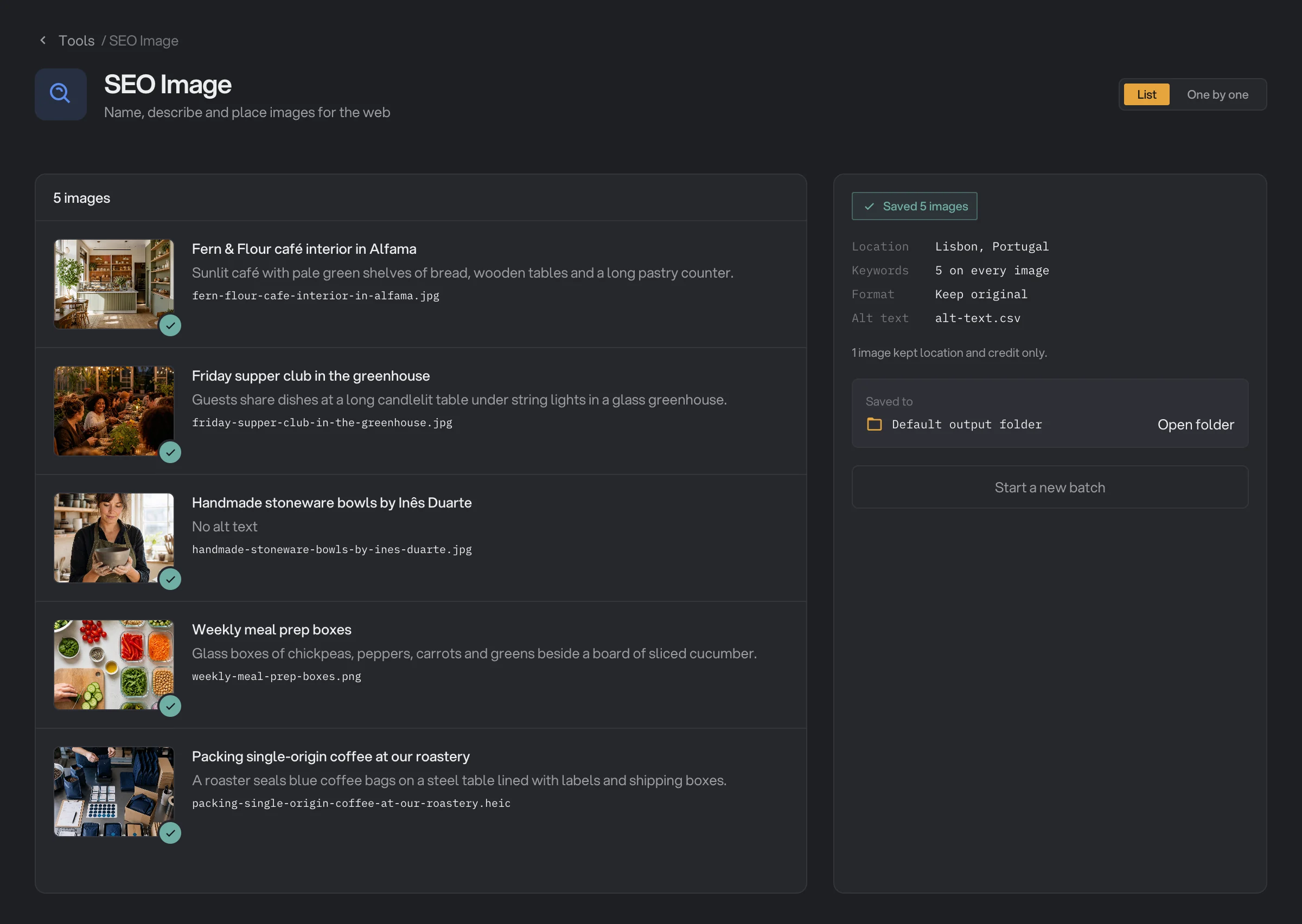
To save somewhere else, click Change next to Default output folder. Then click Save. The list shows the name each one got. Move the pointer over an image and click Copy to copy its alt text, ready to paste into your website. Open folder goes to the files, and Start a new batch clears the images but keeps the shared settings.
Write with AI
Hangar can read each picture and draft its title, alt text and keywords. The new file names follow from the titles. You need a license and an internet connection.
- Click Write with AI above the list, or at the end of the settings strip in One by one. The first time, read what it does and click Turn on.
- In About these images, say what they are, such as "Fern & Flour, a bakery café". The writer also uses your Location and your shared Keywords, and it won’t repeat them.
- Choose what to write and the Language, then click Write. A line sweeps down each picture while it is read.
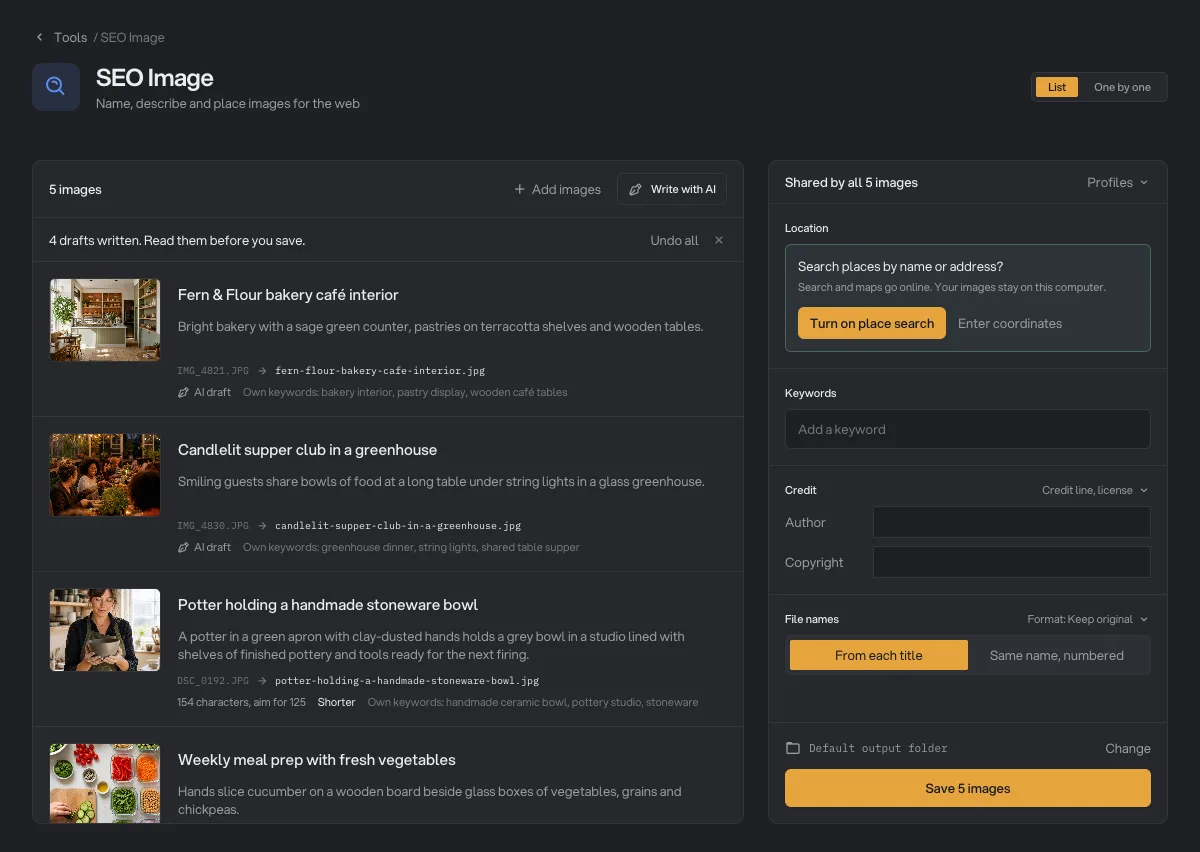
- Read the drafts. They are ordinary text, so click and edit anything. Nothing is saved until you click Save.
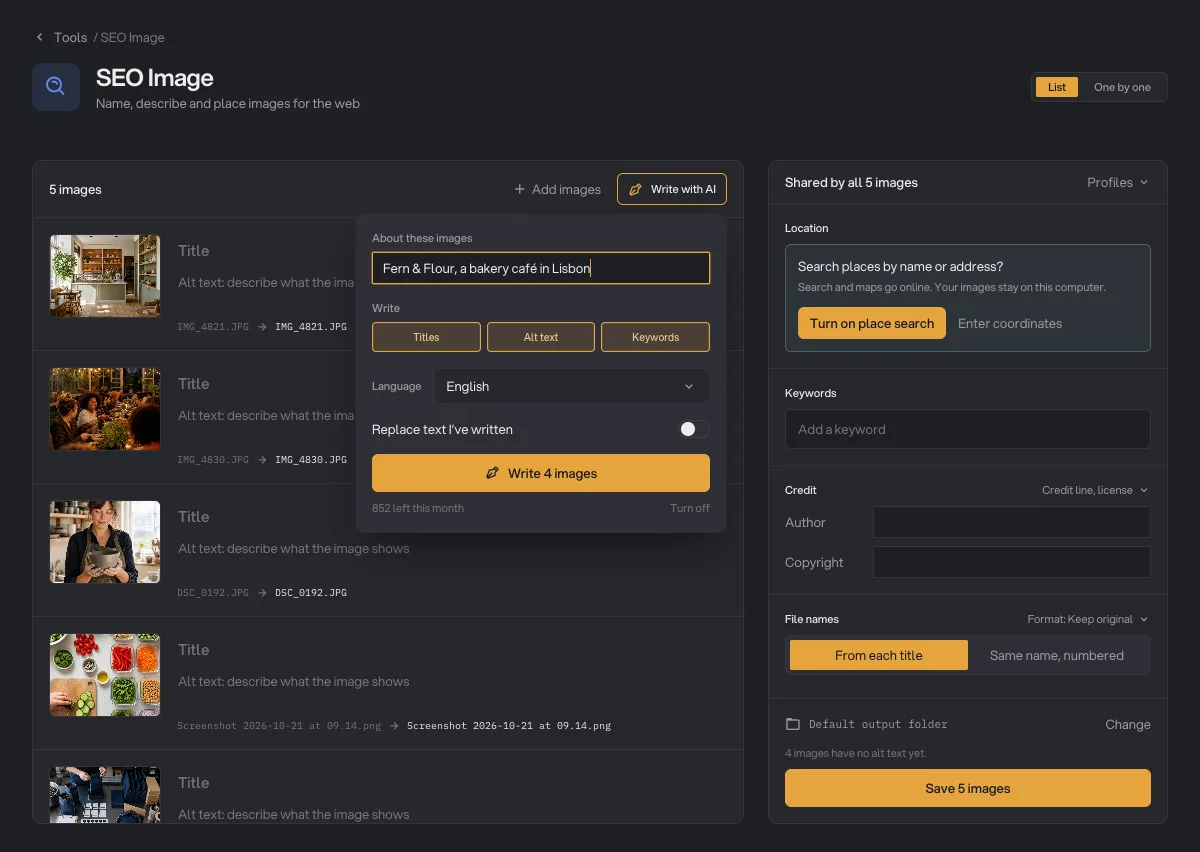
Text you wrote stays as it is, and text you type while Hangar works always wins. Turn on Replace text I’ve written to write those images again.
Move the pointer over a draft for more choices. Rewrite tries a different title and alt text, Shorter tightens the alt text, and Undo brings back what was there. Undo all does the same for every image. If alt text runs past 125 characters, the row says so, because some screen readers stop reading around there.
Solo includes 1,000 images a month, Crew 3,000 and Fleet 8,000. The panel shows how many you have left, and an image that fails isn’t counted.
Add a place
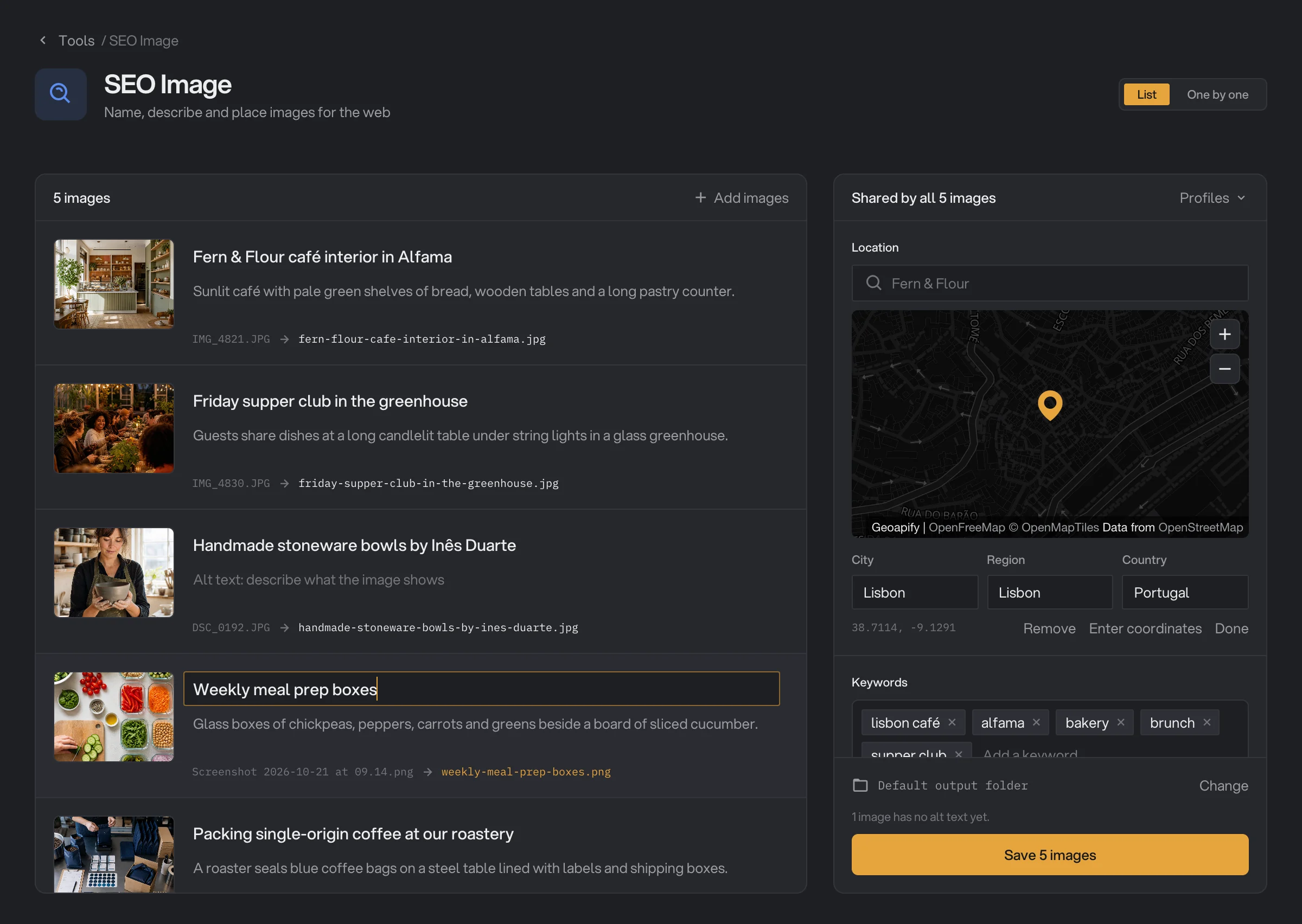
Under Location, Hangar first asks Search places by name or address? Search and the map go online, so they stay off until you click Turn on place search. Your images stay on your computer either way.
- Search for a business, a street or a city. Places you used before show first, as you type. Use the arrow keys and Enter, or click a result.
- Move the pin by dragging it or clicking the map. Click Change on your place to open the map, or Use the map if you have not chosen one yet. Hangar fills in the place names for that spot.
- Edit the names in City, Region and Country if you want them to read differently. Click Done when you finish.
- Enter coordinates works with no internet at all. Turn off maps is on that same panel.
Every setting, and when to change it
- File names
From each title makes a clean name from the title: lowercase, no accents, dashes for spaces. Same name, numbered uses one name for the batch, plus -01, -02. A repeated name gets -2, -3.
- DefaultFrom each title
- Format
Click Format next to File names. Keep original leaves the picture exactly as it is. JPEG and WebP save a new copy made for the web, and hold everything for any image.
- DefaultKeep original
- Longest side
For JPEG and WebP. Makes the longest side this many pixels. Leave it empty to keep the size.
- DefaultEmpty
- Quality
For JPEG and WebP. Lower makes smaller files with less detail.
- Default82
- Save alt text as a CSV
Adds alt-text.csv next to the images, with the file name, title and alt text of each one. It opens in Excel and Numbers with accents intact.
- DefaultOn
- Output folder
Click Change to save this batch in another folder. Hangar remembers it until you close the app, and the x beside it goes back to the default.
- DefaultDefault output folder
What each format can hold
- JPEG, PNG and WebP hold everything.
- HEIC, HEIF, AVIF and TIFF hold the author, the copyright and the GPS location, but not the title, alt text, keywords or place names. The screen says so on that image, and One by one adds a Save as JPEG button.
- GIF and BMP hold none of it, so choose JPEG or WebP. With Keep original, they are not saved and the screen says why.
How do I get the best results?
- Keep titles short and specific. "Handmade stoneware bowls by Inês Duarte" gives a better name than "Photo 3".
- Write alt text for a person. Say what the image shows, in a sentence. Don’t list keywords.
- Give Write with AI a name. It can’t know your shop or your client from the picture. Put the name in About these images, and check any detail it had to guess.
- Use WebP with a Longest side of about 2000 for most website images.
- Check your website. Upload one image to see which details it keeps before you do the whole set.
Limits
- Write with AI skips images whose format can’t hold a title or alt text. Save them as JPEG or WebP first.
- It doesn’t change your website. You upload the images yourself.
- It isn’t available as a chain step, because each image needs its own title and alt text. To tag many files without describing each one, use Batch Rename for names.
- Add image files, not folders.
Common questions
Will this make my images rank higher?
No tool can promise that. Clear file names and good alt text are standard image SEO advice, and SEO Image makes them quick to do for a whole batch. Google has not said that location details inside a file help ranking, so treat a place as useful for your own records and for local businesses, not as a ranking trick.
Does the alt text reach my website?
It depends on the website. The alt text a search engine reads is the one on the web page. Some systems, such as WordPress, read the title and caption stored in a file when you upload it, and others ignore them. If yours ignores them, paste from alt-text.csv, or use Copy on the saved screen.
Do my images go online?
Not unless you choose an online feature. Write with AI sends a small copy of each image, only after you turn it on and press Write. Place search and the map send only what you type into the search box, and only after you turn them on. Hangar does not log your searches or keep your images.
Can Hangar write the alt text for me?
Yes. Click Write with AI above the list and Hangar drafts a title, alt text and keywords from each picture. Read the drafts before you save, because AI can get a detail wrong.
How many images can Write with AI do?
Solo includes 1,000 images a month, Crew 3,000 and Fleet 8,000. The count starts again on the first of each month, and the panel shows how many you have left.
Can I add a place without going online?
Yes. Choose Enter coordinates, type a latitude and longitude, and type the city, region and country yourself. Nothing goes online.
Why can a HEIC file not hold a title or alt text?
HEIC, AVIF and TIFF files can hold the author, the copyright and the GPS location, but Hangar can only write a title, alt text and keywords into JPEG, PNG and WebP files. Save as JPEG or WebP to keep everything. GIF and BMP files can hold none of it, so they need JPEG or WebP.
Are my original images changed?
No. Hangar saves new copies in your output folder. The originals keep their names and details.
Still stuck?
One person reads every message, usually with a reply within a day.